
ContrastGuard quickstart
Scan a page, see every failing text layer, jump to it. Everything in this guide is free.
Install the plugin
- Open ContrastGuard on the Figma Community and click Install.
- Open any Figma or FigJam file.
- Run it from Plugins → ContrastGuard, or press Cmd/Ctrl + / and type "Contrast".
Your first scan
- Select the frames you want to check, or select nothing to scan the whole page.
- On the Contrast tab click Scan text contrast (WCAG 2.1).
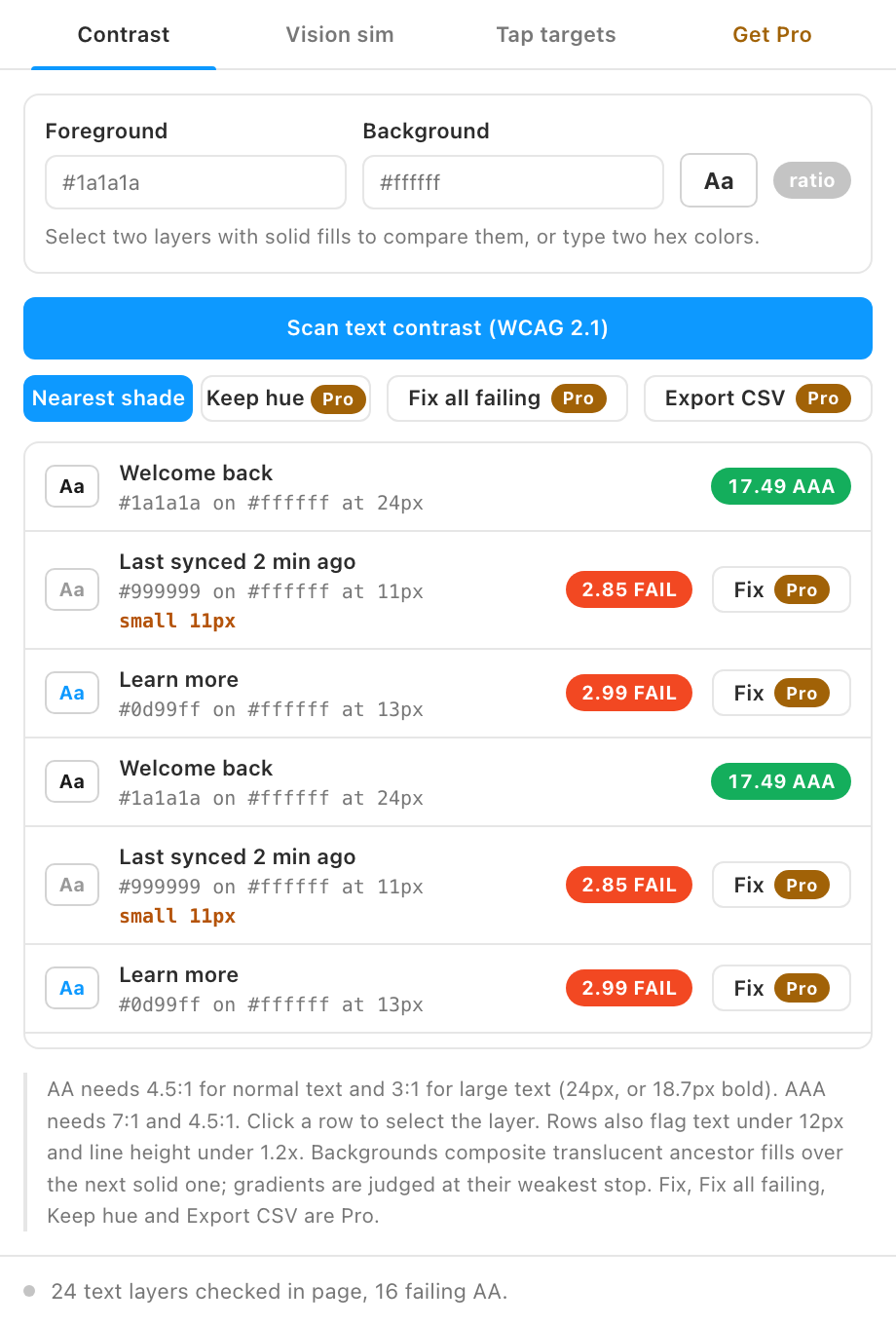
- Every text layer appears as a row: a swatch of the text on its background, the hex colors and size, and a badge with the ratio and verdict. Green passes AAA, olive passes AA, red fails.
- Click a row to select that layer on the canvas.
- Rows flag text under 12 px and tight line height, and note when a background is a gradient.
Check any two colors
At the top of the Contrast tab is the pair check. Select two layers with solid fills and the ratio appears live, with AA and AAA verdicts for normal and large text. Or type two hex colors into the fields.
Simulate color vision
- Open the Vision sim tab and select exactly one frame.
- Click Render selected frame.
- Switch between Normal, Protanopia, Deuteranopia, Tritanopia and Achromatopsia.
Audit tap targets
Open the Tap targets tab and click Scan interactive elements. Every layer with a prototype interaction is listed with its size and whether it clears the WCAG 2.2 minimum of 24 px and the 44 px platform recommendation.