
ScanReady quickstart
Type the content, check the preview, create the code. Single QR codes, every style option and Code 128 and EAN-13 barcodes are free, so you can put a real code in your design before you pay anything.
Install the plugin
When ScanReady is published, open it on the Figma Community and click Install. Until then it is not yet available.
Once installed:
- Open any Figma, FigJam or Slides file.
- Run it from Plugins > ScanReady, or press Cmd/Ctrl + / and type "ScanReady".
Your first QR code
- In the QR code tab, leave Content on URL and type your link. A link without
https://gets it added. - Check the preview. Next to it you see the version, the module count, the error correction level and the px per module.
- Style it if you like: a foreground color, Rounded or Dots modules, Rounded corner markers, or Logo cutout for a clear center.
- Click Create QR code. A frame named like "QR: example.com" appears in the middle of your view.
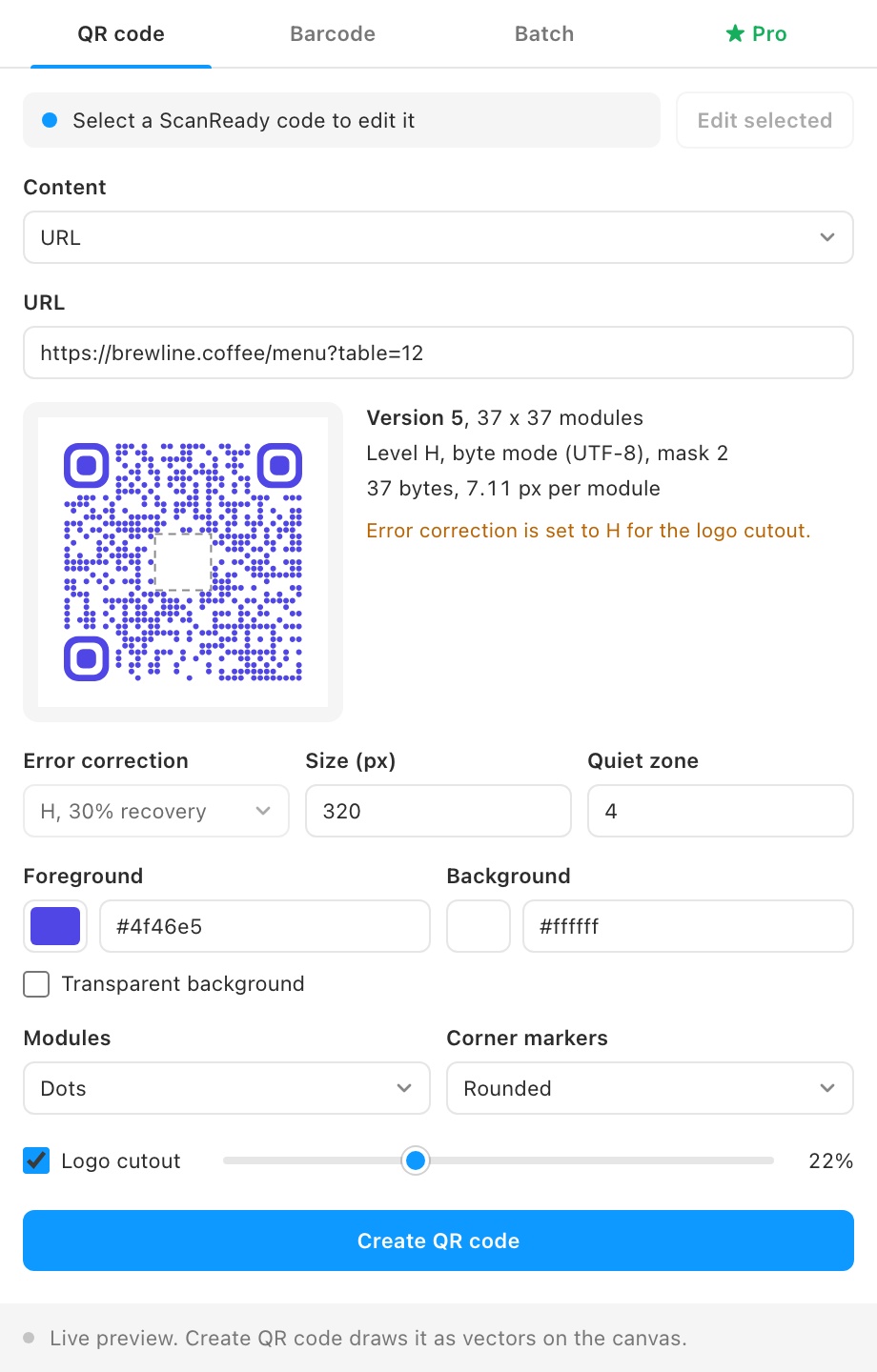
To change it later, select the frame (or any layer inside it), press Edit selected, change the content or style, and press Update selected.
Your first barcode
- Open the Barcode tab and choose EAN-13 or Code 128.
- Type the value. For EAN-13, 12 digits get a computed check digit; 13 digits are checked.
- Set the module width and bar height, then click Create barcode.