
FlowLines feature guide
How an arrow is chosen, drawn and kept up to date, and every control on the Connect and Style tabs.
Order and pattern
- Name
Selection order- Type
- default
- Description
The order you clicked the layers. Layers you add several at once, with a marquee, join the end of the list left to right.
- Name
Left to right- Type
- by center
- Description
Sorted by the horizontal center of each layer, then top to bottom.
- Name
Top to bottom- Type
- by center
- Description
Sorted by the vertical center of each layer, then left to right.
Each to the next draws one arrow per neighbouring pair: three layers give two arrows. First to all others draws an arrow from the first layer to every other one.
Sides
With Auto (nearest) on both ends, FlowLines measures the horizontal and vertical gap between the two layers and connects across the larger one: right to left when the target is beside, bottom to top when it is below. Pin a side to force it. If you pin only one end, the other end uses the side that faces the pinned point. Arrows attach to the middle of the side.
Line styles
- Name
Straight- Type
- free
- Description
One line from anchor to anchor.
- Name
Elbow- Type
- free
- Description
Horizontal and vertical runs only. Facing sides turn halfway across the gap; other cases step out from each side first. Corners are rounded with the Corner radius you set, reduced automatically on short runs. A radius of 0 gives sharp corners.
- Name
Curved- Type
- Pro
- Description
A smooth curve that leaves each side straight out from its edge.
Route elbows around other frames (Pro) makes elbow arrows find a path around the other top-level frames on the page, including frames inside sections. The frames that contain the start or end layer are not treated as obstacles. If no route is found within the search limit, the arrow falls back to a plain elbow. After Connect, the status bar says how many arrows were routed around frames.
Stroke and arrowheads
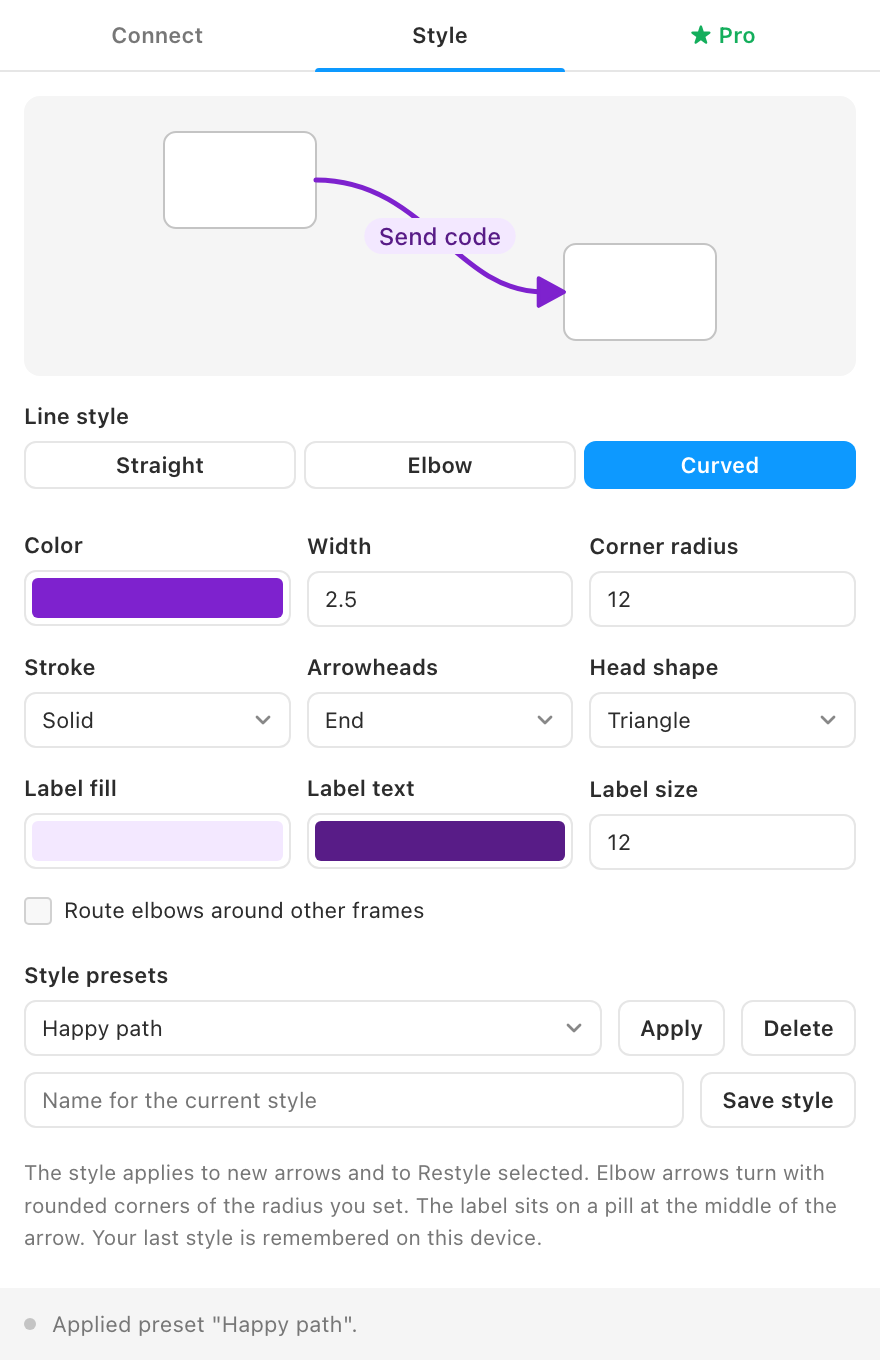
Pick the color, a width from 0.5 to 24, and solid or dashed. Arrowheads go at the End, Start, Both or None, as a filled Triangle, an Open chevron or a filled Circle. The head grows with the stroke width, and the line stops just short of it so the stroke does not poke through.
Labels
Type a label on the Connect tab before you click Connect. It is placed at the middle of the arrow's length on a rounded pill, using Inter Medium (or Inter Regular or Roboto when Medium is missing). Set the pill fill, text color and size on the Style tab. One label applies to every arrow drawn in that run.
What an arrow is
In Figma Design and Slides, each arrow is a vector named after the layers it joins, for example "Sign in → Home". With arrowheads or a label, the arrow is a group of the line, the heads and the label. All arrows live in one group called "FlowLines" on the page, or on the slide in Slides. Each arrow stores its start and end layer ids, its sides, its style and its label in plugin data.
In FigJam, FlowLines draws native connectors attached to the two layers, with the matching line type, color, dash, end caps and text. If a layer cannot take a connector, it falls back to a vector arrow.
Reroute all, Restyle selected, Delete
- Reroute all redraws every FlowLines vector arrow on the current page from its stored layers, keeping its style and label. FigJam connectors are skipped because they follow their shapes already.
- Restyle selected applies the Style tab to the selected arrows (select any part of an arrow). If the Label field on the Connect tab has text, it replaces the arrows' labels; when it is empty, the old labels stay.
- Delete arrows for selection removes every arrow that starts or ends on a selected layer or anything inside it. Selected arrows are deleted too.
Live reroute (Pro)
Tick Reroute arrows when layers move. While the plugin window is open, FlowLines watches the current page and, a moment after you stop moving or resizing a layer, redraws the arrows whose start or end layer changed position or size. It follows you when you switch pages. When you close the plugin, it stops; use Reroute all next time. In FigJam this option is off because connectors reroute natively.
Arrows from prototype links (Pro)
Select one or more frames and click Draw arrows from prototype links. Every "Navigate to" interaction inside them becomes an arrow from the layer that triggers it to the destination frame, using the current style and sides. Tick Label each arrow with its trigger to label them Tap, Hover, Press, Drag, Delay and so on. Links that already have an arrow, and destinations on another page, are skipped.
Style presets (Pro)
Type a name and click Save style to keep the current style. Pick one and click Apply to load it into the Style tab. Presets are stored on your device, up to 24 of them, and work in any file. Your last used style is remembered on every plan.