
DeckPort quickstart
Select the frames, choose PowerPoint or PDF, export. A deck of up to 5 slides is free in both formats, so you can open the result in PowerPoint before you pay anything.
Install the plugin
- Open DeckPort on the Figma Community and click Install.
- Open any Figma or FigJam file.
- Run it from Plugins → DeckPort, or press Cmd/Ctrl + / and type "DeckPort".
Your first deck
- Name your frames so they sort the way you want: "Slide 1", "Slide 2", "Slide 10" sort naturally. Or skip this and order by canvas position in the next step.
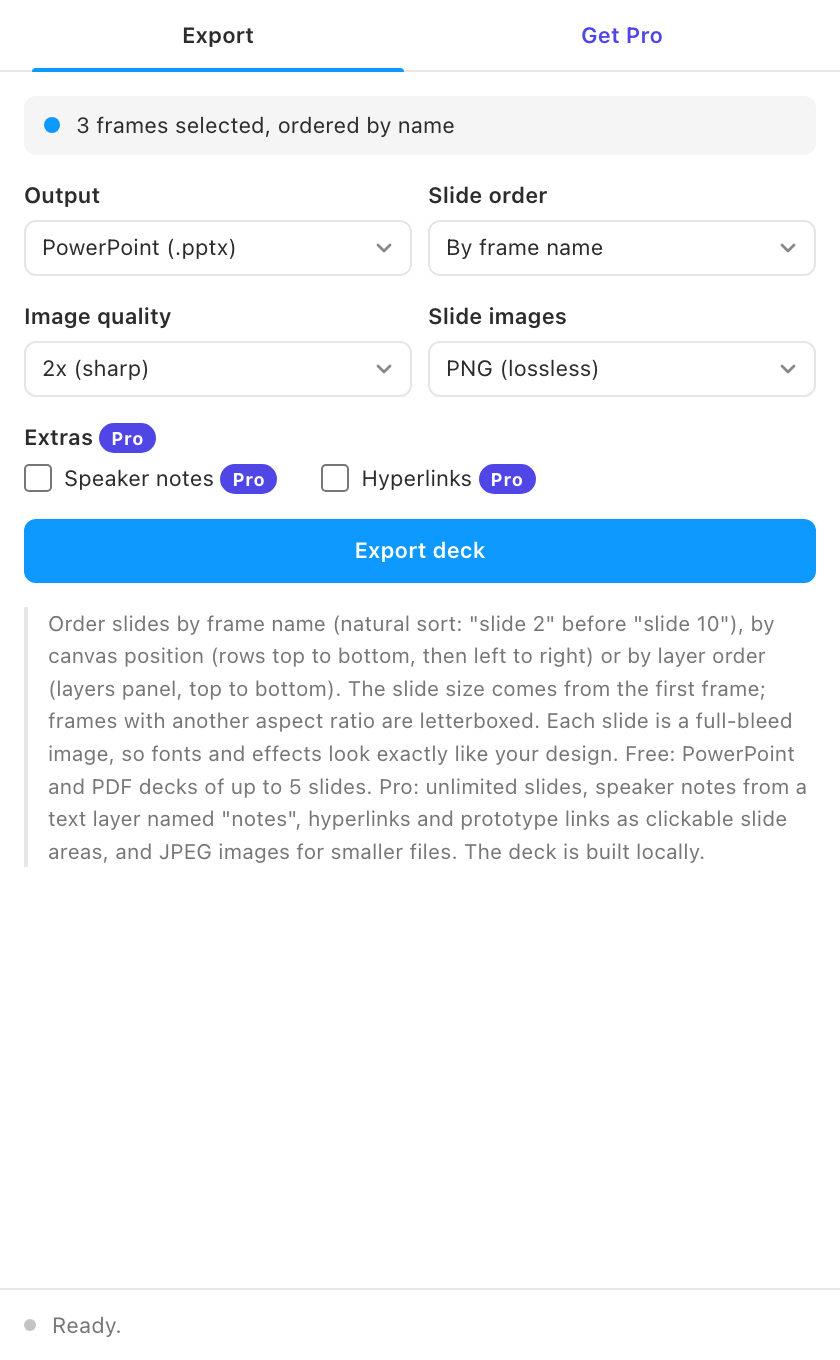
- Select the frames. The plugin's first line shows how many are selected.
- Choose the output. PowerPoint (.pptx), PDF, or both.
- Choose the slide order. By frame name, by canvas position (rows from top to bottom, then left to right), or by layer order.
- Pick image quality. 2x is right for most decks; 3x for large screens; 1x for quick drafts.
- Click Export deck.
deck.pptx or deck.pdf lands in your downloads folder. Open it in PowerPoint, Keynote or Google Slides. Each slide is a full-bleed image of its frame, so every font, shadow and gradient looks exactly as designed.