
SoftShadow quickstart
Select a layer, drag the light, apply. The whole generator is free, so you can judge the result on your own design before you think about Pro.
Install the plugin
- When SoftShadow is published, open it on the Figma Community and click Install. Until then it is not yet available.
- Open any Figma design file.
- Run it from Plugins > SoftShadow, or press Cmd/Ctrl + / and type "SoftShadow".
Your first shadow
- Select one or more layers. Frames, shapes, text and components all take effects. The first line shows how many of the selected layers can take one.
- Drag the sun on the light pad. Up and to the left casts the shadow down and to the right. The center means light from straight above, with no offset.
- Set the elevation. Higher numbers lift the layer further off the page: longer offsets and wider blur.
- Tune the feel. Softness widens the blur, layers sets how many shadows are stacked, opacity sets how dark the whole stack is, and the curve sets how quickly the layers grow.
- Pick a color. Black, a custom color, or Tint from selection for a dark shade of the selected layer's fill.
- Click Apply to selection.
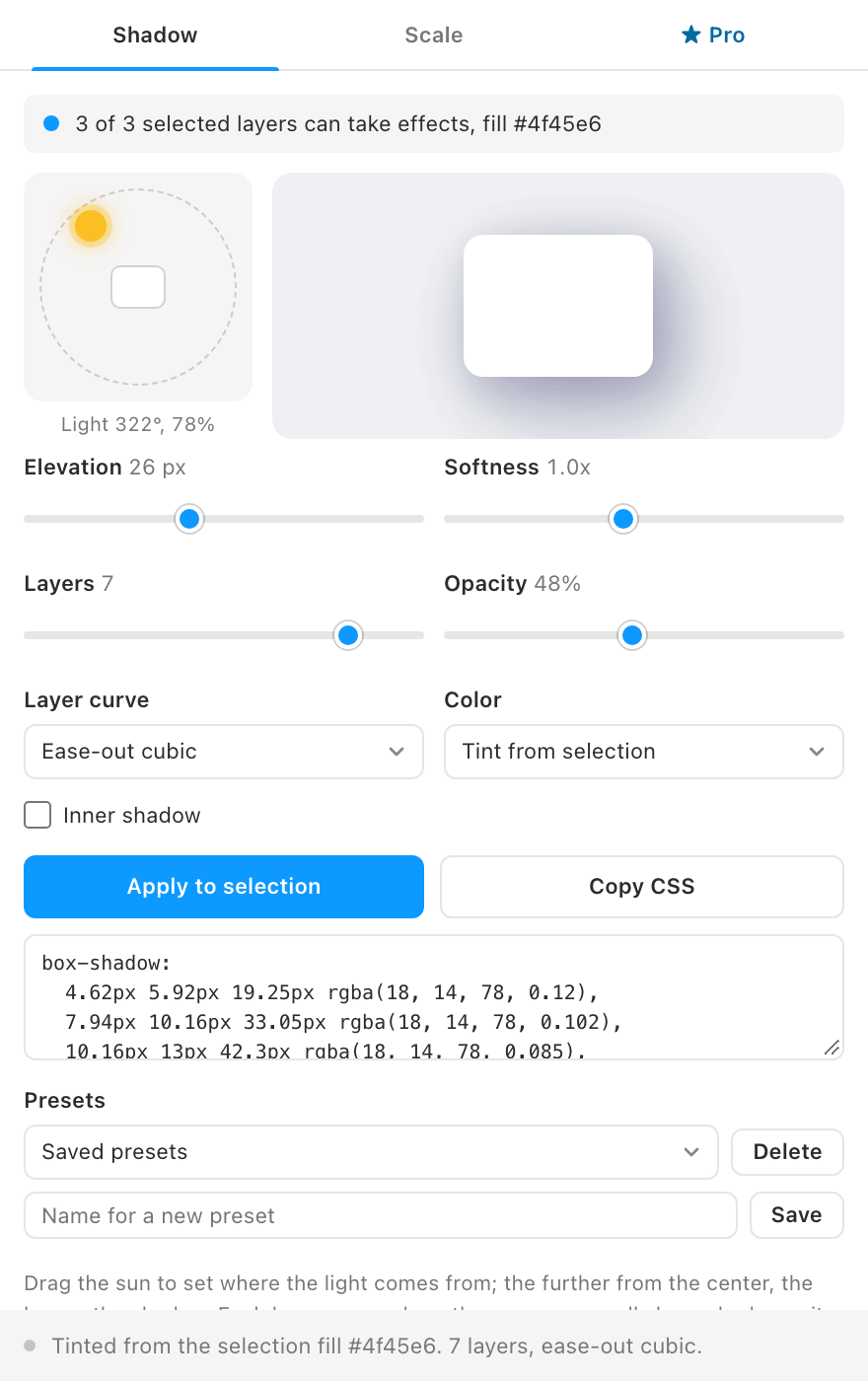
The status bar confirms how many layers got the shadow. To use the same shadow in code, click Copy CSS and paste the box-shadow declaration into your stylesheet.