
FlowLines
Select your screens in order, click Connect, and get clean flow arrows that remember what they connect. Free to install; Pro is a $19 one-time purchase.
FlowLines is in final testing and will be on the Figma Community soon. This page documents the first release.
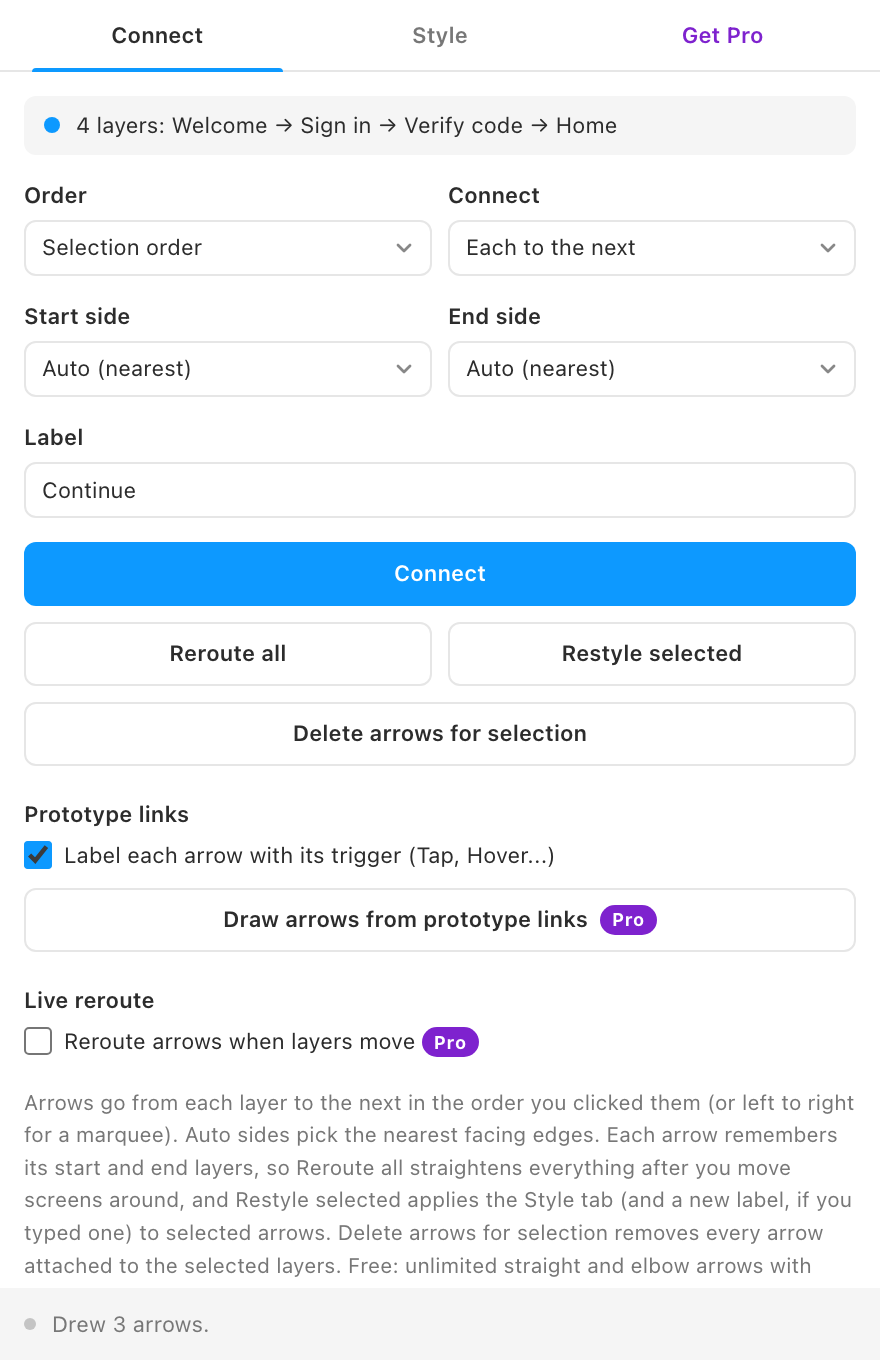
User flow diagrams are mostly arrows, and drawing them by hand means redrawing them every time a screen moves. FlowLines draws the arrows for you and stores on each one which layers it joins, so one click puts every arrow back in place.
Guides
- Quickstart: install and draw your first flow in two minutes.
- Feature guide: every control explained, and the rules the plugin follows.
- Pro features: what Pro unlocks and how the gate works.
- Troubleshooting: what to check when an arrow looks wrong.
Free vs Pro
- Name
Free, forever- Type
- no account needed
- Description
Unlimited straight and elbow arrows, automatic or pinned sides, colors, widths, solid or dashed lines, arrowheads in three shapes, labels, Reroute all, Restyle selected and Delete arrows for selection.
- Name
Pro- Type
- $19 one-time
- Description
Curved arrows, live reroute while the plugin is open, elbow arrows that route around other frames, arrows drawn from prototype links, and saved style presets. No subscription.
What it does
- Connects in the order you click. Select two or more layers and each one gets an arrow to the next. Or connect the first layer to all the others.
- Picks the sides for you. Auto sides use the nearest facing edges. You can pin the start or end side to top, right, bottom or left.
- Three line styles. Straight, elbow with rounded corners, and curved (Pro).
- Styled like your design. Stroke color and width, solid or dashed, arrowheads at the end, start, both or neither, as a triangle, an open chevron or a circle.
- Labels on a pill. Text at the middle of each arrow on a rounded background, with its own fill, text color and size.
- Arrows that remember. Each arrow stores its start and end layers, sides, style and label, so Reroute all puts every arrow back after screens move.
- Native in FigJam. In FigJam, FlowLines draws real FigJam connectors, which follow shapes on their own.
How to use it
- Select your screens in order. Click the first, then Shift-click the next ones. The top line of the plugin shows the order.
- Set the style. Pick a line style, color and arrowheads on the Style tab. The preview shows the result.
- Click Connect. Arrows appear inside a group called "FlowLines" on the page. Move screens around, then click Reroute all.
FAQ
Can I edit an arrow by hand?
Yes, they are ordinary vectors and groups. But Reroute all and Restyle selected redraw an arrow from its stored record, so hand edits to the shape are replaced the next time it is rerouted.
Does it work in FigJam and Slides?
Yes. In FigJam it draws native connectors. In Figma Slides it draws vector arrows, and both layers must be on the same slide.