
CopySync quickstart
Words out to a spreadsheet, edits back in without retyping. Extract, preview and imports of up to 20 changed rows are free, so you can prove the round trip before paying.
Install the plugin
- Open CopySync on the Figma Community and click Install.
- Open any Figma or FigJam file.
- Run it from Plugins → CopySync, or press Cmd/Ctrl + / and type "CopySync".
Extract
- Select the frames whose text you want, or select nothing for the whole page.
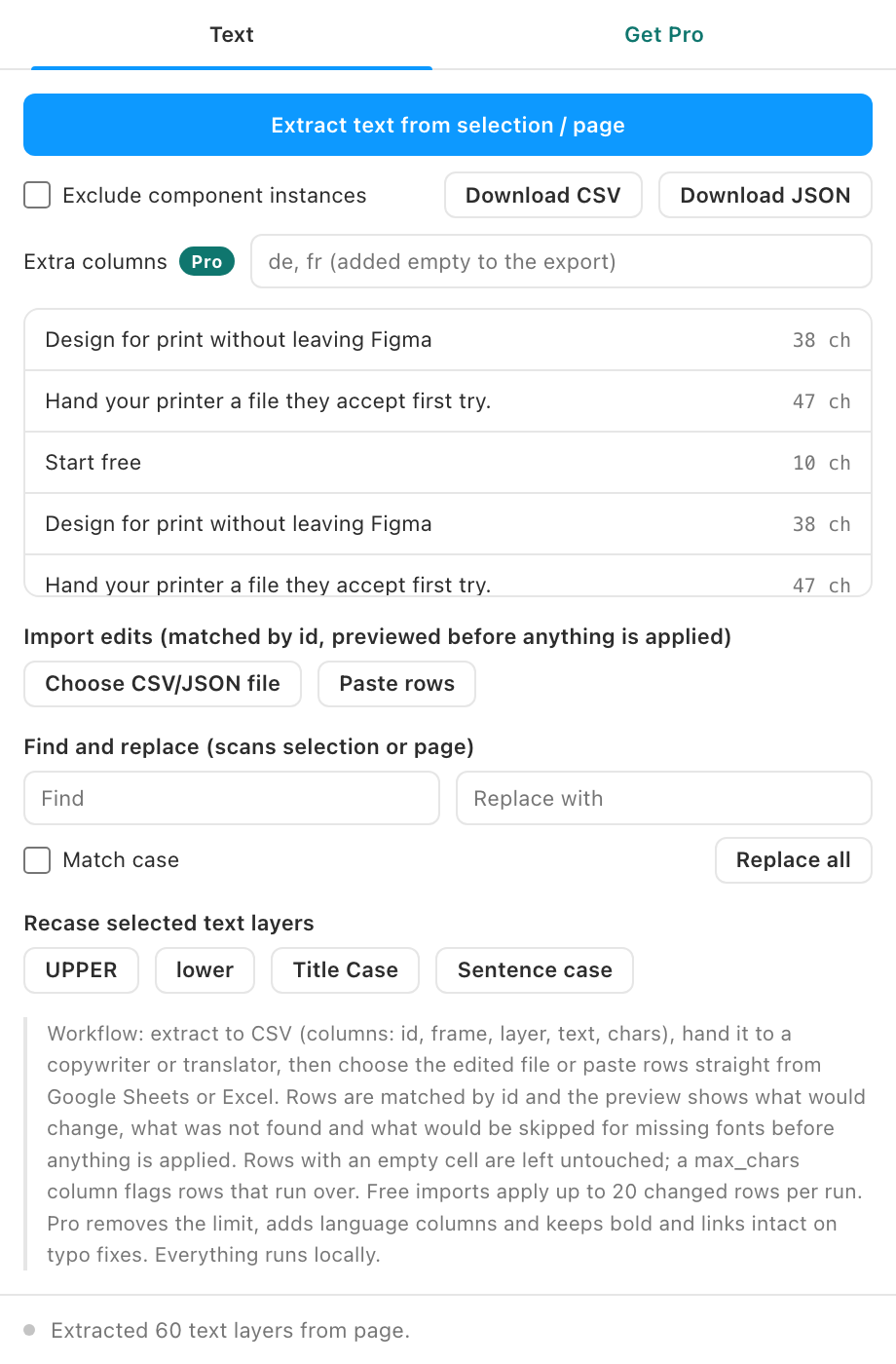
- Tick Exclude component instances if you only want text that is editable in this file.
- Click Extract text from selection / page. The list shows every text layer with its character count; click a row to select it on the canvas.
- Click Download CSV (or JSON). Columns:
id,frame,layer,text,chars.
Edit
Open the CSV in Excel, Numbers or Google Sheets. Change only the text column; the id column is how rows find their layers, so leave it alone. You can add your own columns, they are ignored on import.
Import
- Click Choose CSV/JSON file, or copy the rows from your spreadsheet and click Paste rows to paste them straight in.
- Read the preview: how many rows matched, how many changed, which ids were not found, and which layers would be skipped because a font is missing. Rows that grew more than 30 percent are flagged.
- Click Apply N changes. Only the rows whose text actually changed touch your file.
Find, replace, recase
Below the import area, Find and replace works across the selection or page with a match-case option, and the four Recase buttons change the selected text layers to UPPER, lower, Title Case or Sentence case.