
SpecMark feature guide
What each redline measures, where it is drawn, and how to keep it accurate.
Redlines
- Name
Size- Type
- free
- Description
For every selected layer: a width line 12px above it and a height line 12px to its right, each with tick ends. The label sits on the line when it fits, otherwise just outside it.
- Name
Padding and gap- Type
- free
- Description
For every selected auto layout frame: each non-zero padding as a tinted band along that edge, and the space between each pair of neighbouring items as a band between them. Hidden layers and absolutely positioned layers are left out. Items that wrap to a new row get no band between rows.
- Name
Distance- Type
- free
- Description
For exactly two selected layers: the horizontal gap, the vertical gap, or both when they sit diagonally apart. When one layer is inside the other, SpecMark draws the four distances from the inner layer to the outer edges instead. Layers that partly overlap have no gap to measure.
- Name
Specs label- Type
- Pro
- Description
A small card 48px to the right of each selected layer listing its name, fill hex (with opacity and style name), stroke, text style or font, font size, line height, corner radius and effects.
- Name
Spec this frame- Type
- Pro
- Description
For each selected frame: its size, its padding and gap when it uses auto layout or the spacing between its layers when it does not, and the size of every direct child, plus padding and gap for children that use auto layout.
- Name
Spec whole page- Type
- Pro
- Description
The same as Spec this frame, for every visible top-level frame on the page that has layers inside.
- Name
Spec sheet- Type
- Pro
- Description
A new white frame to the right of everything on the page, holding a locked copy of the selected frame (an instance when you select a component), all of its redlines and a legend that explains lines, bands, labels and units.
Where redlines live
Every redline on the page goes into one group named "SpecMark", created the first time you draw one and kept at the top of the layers. The group is locked so redlines never get selected by accident while you design. Each redline is its own group inside it, named after what it measures, for example "Padding and gap: Card".
Each redline also stores which layers it measures. That is what makes the next two buttons work.
Update all and Clear
- Update all removes every redline on the page and draws it again from the current design, with the current style. Redlines whose layers were deleted, or which have nothing left to measure, are removed and counted in the status bar.
- Clear selection removes the redlines that measure the selected layers or anything inside them.
- Clear page removes the whole SpecMark group.
Redlines inside a spec sheet are not part of the SpecMark group, so Update all and Clear leave them alone. Build a new sheet after big changes.
Style
- Name
Color- Type
- #F24822
- Description
Lines, bands, label backgrounds and the specs card outline. Bands use the color at 18 percent opacity.
- Name
Label size- Type
- 11
- Description
Font size of the labels and specs cards. Labels use Inter Medium, or Inter Regular when Medium is not available.
- Name
Units- Type
- px or rem
- Description
rem divides by the base size you enter (16 by default) and always shows at least 3 decimals, so 2px reads as 0.125rem.
- Name
Decimals- Type
- 0 to 2
- Description
Rounding for labels. Trailing zeros are dropped, so 12.50 shows as 12.5.
With Pro, Saved styles keeps named sets of these options on your device. Type a name and click Save, pick one from the list to apply it, or select one and click Delete.
Spacing audit (Pro)
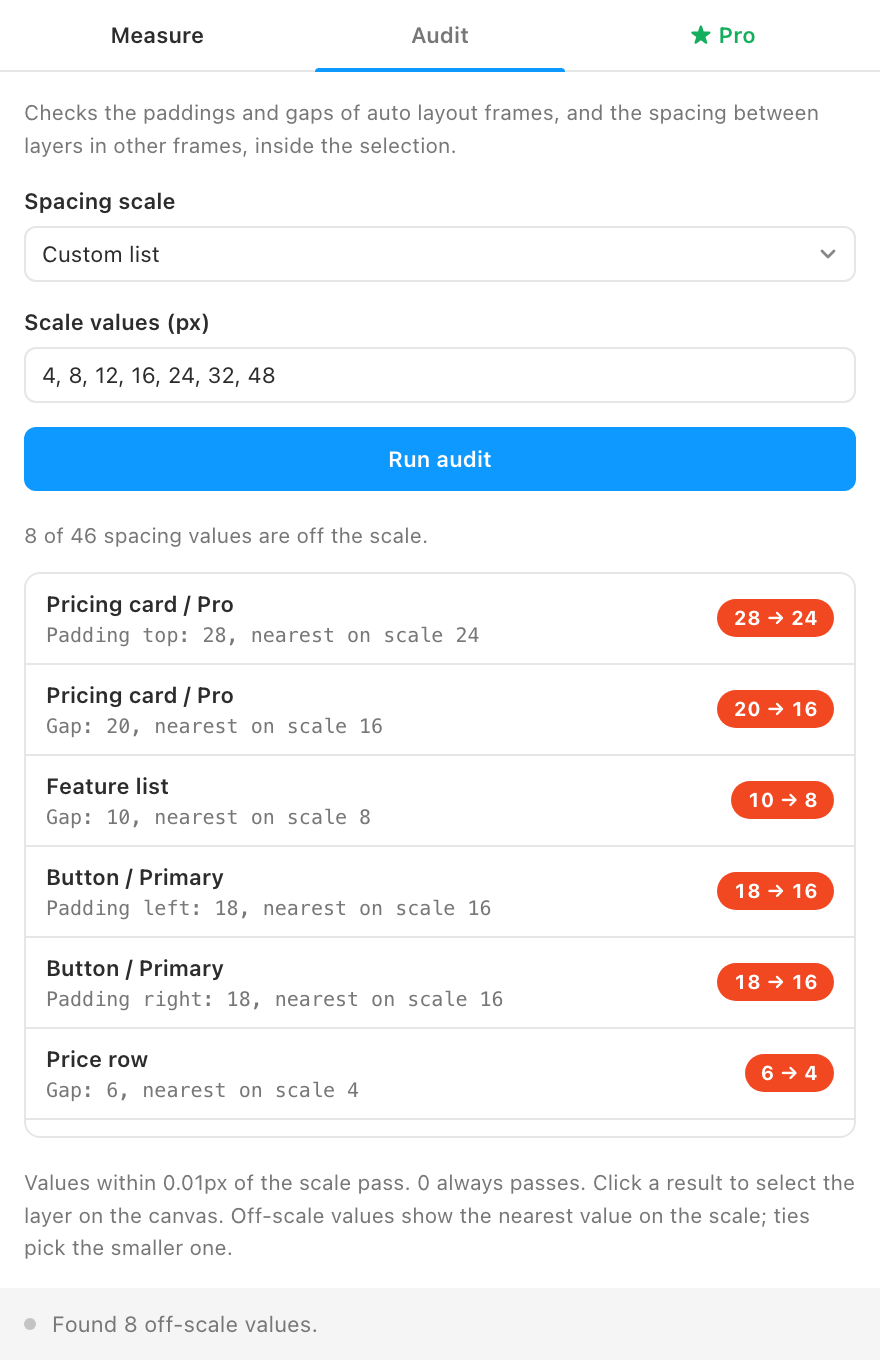
The Audit tab checks the selection against a spacing scale:
- Auto layout frames: the four paddings, the gap between items (skipped when items are spaced with "Space between" or there is only one item) and the row gap of wrapping frames.
- Other frames and groups: the distance from each layer to its nearest neighbour to the right and below.
Choose Multiples of 4, Multiples of 8 or a Custom list such as 4, 8, 12, 16, 24, 32, 48. A value passes when it is within 0.01px of the scale, and 0 always passes. Each off-scale value is listed with the layer, what was measured, the actual value and the nearest value on the scale; when two scale values are equally close, the smaller one is suggested. Click a result to select the layer on the canvas.
Limits
- One action draws at most 400 redlines. Select fewer frames to spec the rest.
- The audit visits up to 5,000 layers per run and shows the first 500 results.
- Measurements use each layer's bounding box, so rotated layers are measured by the box around them.