
TidyLint quickstart
Lint the current page, jump to an offender and fix it. Everything in this guide is free.
Install the plugin
- When TidyLint is published, open it on the Figma Community and click Install. Until then it is not yet available.
- Open a Figma design file.
- Run it from Plugins → TidyLint, or press Cmd/Ctrl + / and type "TidyLint".
Your first lint
- Choose the scope. Selection lints the selected layers and everything inside them. Current page lints every layer on the page. The first line of the plugin tells you which one is active.
- Choose the rules. All ten are on by default. Use All and None to toggle them in one click.
- Set the color match tolerance. The default of 2 matches colors that look the same; 0 accepts exact matches only.
- Click Run lint.
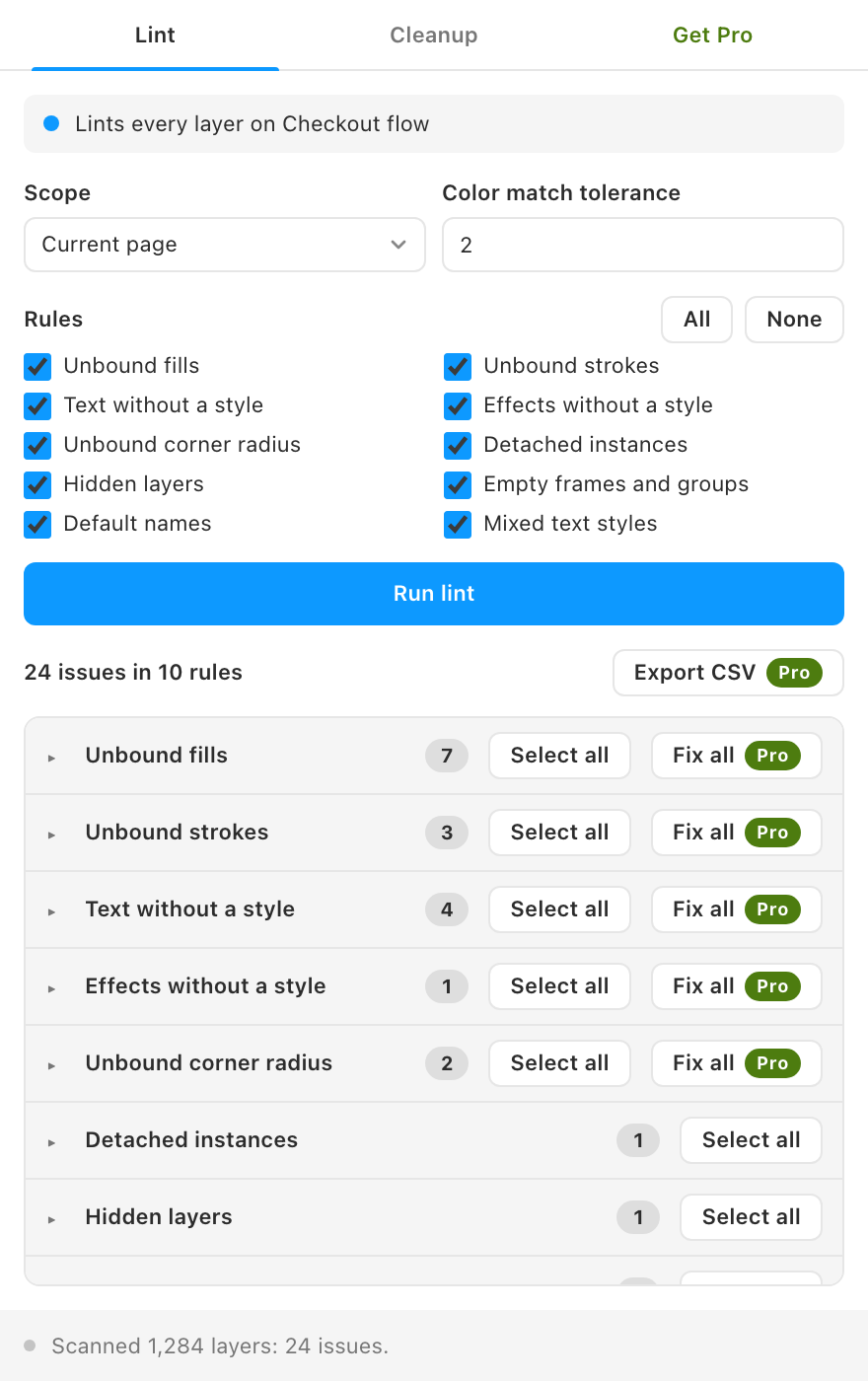
The results appear grouped by rule, each with a count. Click a group header to show its layers.
Your first fix
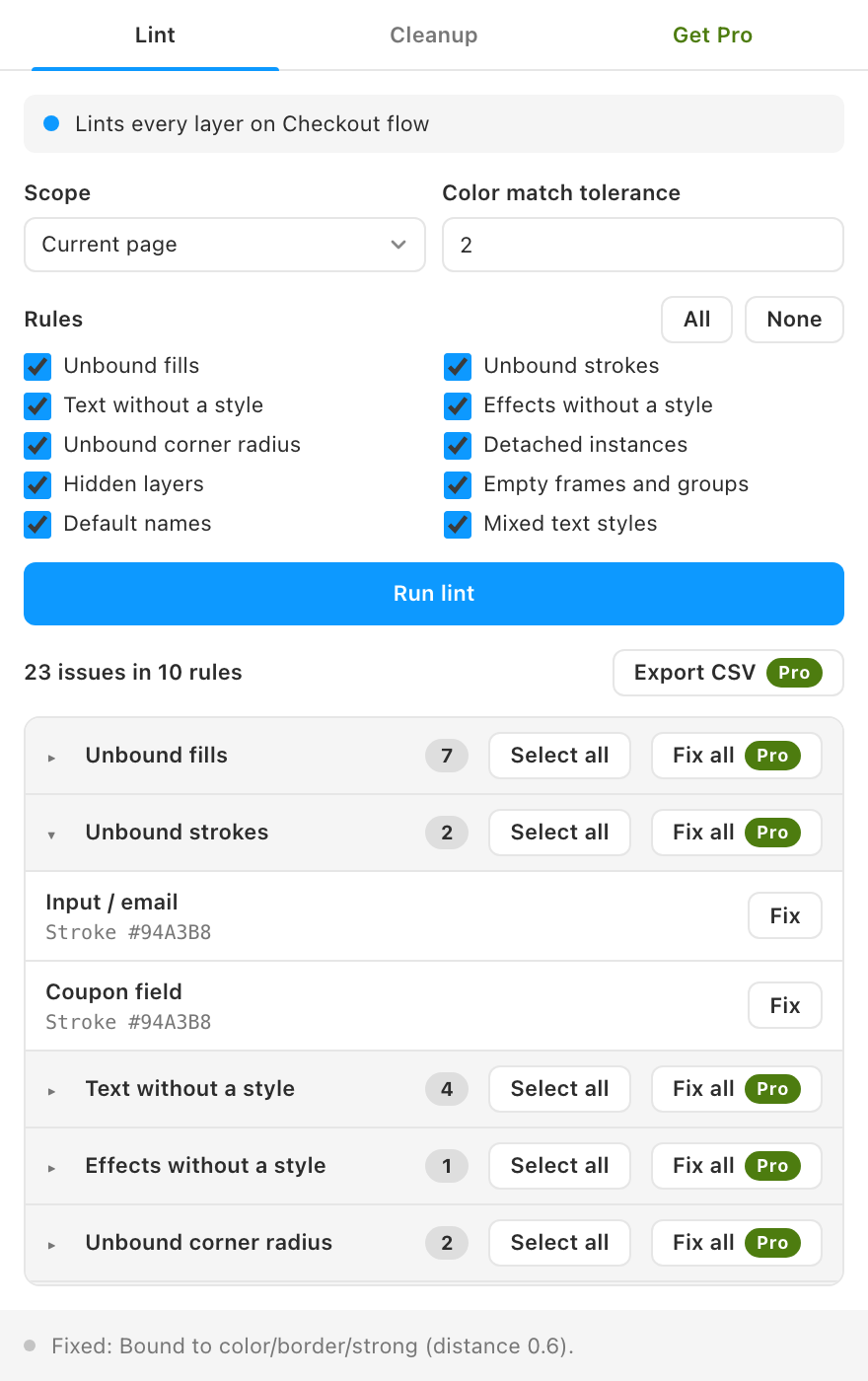
- Open a group such as Unbound fills.
- Click a row to select the layer and zoom to it on the canvas.
- Click Fix. The status bar names the style or variable it was bound to, or explains why nothing matched.
Clean up
Open the Cleanup tab and click Find unused and duplicates. TidyLint scans every page and lists unused styles, unused variables, duplicate styles and hidden layers.